 6dc8f8e9c0
Add a second light-mode skin option with warm brown/parchment tones,
adapted from ygd58's contribution in PR #4811. Includes completion
menu and status bar color keys for full light-terminal support.

Co-authored-by: buray <78954051+ygd58@users.noreply.github.com>
11 KiB
| sidebar_position | title | description |
|---|---|---|
| 10 | Skins & Themes | Customize the Hermes CLI with built-in and user-defined skins |
Skins & Themes
Skins control the visual presentation of the Hermes CLI: banner colors, spinner faces and verbs, response-box labels, branding text, and the tool activity prefix.
Conversational style and visual style are separate concepts:
- Personality changes the agent's tone and wording.
- Skin changes the CLI's appearance.
Change skins
/skin                # show the current skin and list available skins
/skin ares           # switch to a built-in skin
/skin mytheme        # switch to a custom skin from ~/.hermes/skins/mytheme.yaml
Or set the default skin in ~/.hermes/config.yaml:
display:
  skin: default
Built-in skins
| Skin | Description | Agent branding | Visual character |
|---|---|---|---|
default |
Classic Hermes — gold and kawaii | Hermes Agent |
Warm gold borders, cornsilk text, kawaii faces in spinners. The familiar caduceus banner. Clean and inviting. |
ares |
War-god theme — crimson and bronze | Ares Agent |
Deep crimson borders with bronze accents. Aggressive spinner verbs ("forging", "marching", "tempering steel"). Custom sword-and-shield ASCII art banner. |
mono |
Monochrome — clean grayscale | Hermes Agent |
All grays — no color. Borders are #555555, text is #c9d1d9. Ideal for minimal terminal setups or screen recordings. |
slate |
Cool blue — developer-focused | Hermes Agent |
Royal blue borders (#4169e1), soft blue text. Calm and professional. No custom spinner — uses default faces. |
daylight |
Light theme for bright terminals with dark text and cool blue accents | Hermes Agent |
Designed for white or bright terminals. Dark slate text with blue borders, pale status surfaces, and a light completion menu that stays readable in light terminal profiles. |
warm-lightmode |
Warm brown/gold text for light terminal backgrounds | Hermes Agent |
Warm parchment tones for light terminals. Dark brown text with saddle-brown accents, cream-colored status surfaces. An earthy alternative to the cooler daylight theme. |
poseidon |
Ocean-god theme — deep blue and seafoam | Poseidon Agent |
Deep blue to seafoam gradient. Ocean-themed spinners ("charting currents", "sounding the depth"). Trident ASCII art banner. |
sisyphus |
Sisyphean theme — austere grayscale with persistence | Sisyphus Agent |
Light grays with stark contrast. Boulder-themed spinners ("pushing uphill", "resetting the boulder", "enduring the loop"). Boulder-and-hill ASCII art banner. |
charizard |
Volcanic theme — burnt orange and ember | Charizard Agent |
Warm burnt orange to ember gradient. Fire-themed spinners ("banking into the draft", "measuring burn"). Dragon-silhouette ASCII art banner. |
Complete list of configurable keys
Colors (colors:)
Controls all color values throughout the CLI. Values are hex color strings.
| Key | Description | Default (default skin) |
|---|---|---|
banner_border |
Panel border around the startup banner | #CD7F32 (bronze) |
banner_title |
Title text color in the banner | #FFD700 (gold) |
banner_accent |
Section headers in the banner (Available Tools, etc.) | #FFBF00 (amber) |
banner_dim |
Muted text in the banner (separators, secondary labels) | #B8860B (dark goldenrod) |
banner_text |
Body text in the banner (tool names, skill names) | #FFF8DC (cornsilk) |
ui_accent |
General UI accent color (highlights, active elements) | #FFBF00 |
ui_label |
UI labels and tags | #4dd0e1 (teal) |
ui_ok |
Success indicators (checkmarks, completion) | #4caf50 (green) |
ui_error |
Error indicators (failures, blocked) | #ef5350 (red) |
ui_warn |
Warning indicators (caution, approval prompts) | #ffa726 (orange) |
prompt |
Interactive prompt text color | #FFF8DC |
input_rule |
Horizontal rule above the input area | #CD7F32 |
response_border |
Border around the agent's response box (ANSI escape) | #FFD700 |
session_label |
Session label color | #DAA520 |
session_border |
Session ID dim border color | #8B8682 |
status_bar_bg |
Background color for the TUI status / usage bar | #1a1a2e |
voice_status_bg |
Background color for the voice-mode status badge | #1a1a2e |
completion_menu_bg |
Background color for the completion menu list | #1a1a2e |
completion_menu_current_bg |
Background color for the active completion row | #333355 |
completion_menu_meta_bg |
Background color for the completion meta column | #1a1a2e |
completion_menu_meta_current_bg |
Background color for the active completion meta column | #333355 |
Spinner (spinner:)
Controls the animated spinner shown while waiting for API responses.
| Key | Type | Description | Example |
|---|---|---|---|
waiting_faces |
list of strings | Faces cycled while waiting for API response | ["(⚔)", "(⛨)", "(▲)"] |
thinking_faces |
list of strings | Faces cycled during model reasoning | ["(⚔)", "(⌁)", "(<>)"] |
thinking_verbs |
list of strings | Verbs shown in spinner messages | ["forging", "plotting", "hammering plans"] |
wings |
list of [left, right] pairs | Decorative brackets around the spinner | [["⟪⚔", "⚔⟫"], ["⟪▲", "▲⟫"]] |
When spinner values are empty (like in default and mono), hardcoded defaults from display.py are used.
Branding (branding:)
Text strings used throughout the CLI interface.
| Key | Description | Default |
|---|---|---|
agent_name |
Name shown in banner title and status display | Hermes Agent |
welcome |
Welcome message shown at CLI startup | Welcome to Hermes Agent! Type your message or /help for commands. |
goodbye |
Message shown on exit | Goodbye! ⚕ |
response_label |
Label on the response box header | ⚕ Hermes |
prompt_symbol |
Symbol before the user input prompt | ❯ |
help_header |
Header text for the /help command output |
(^_^)? Available Commands |
Other top-level keys
| Key | Type | Description | Default |
|---|---|---|---|
tool_prefix |
string | Character prefixed to tool output lines in the CLI | ┊ |
tool_emojis |
dict | Per-tool emoji overrides for spinners and progress ({tool_name: emoji}) |
{} |
banner_logo |
string | Rich-markup ASCII art logo (replaces the default HERMES_AGENT banner) | "" |
banner_hero |
string | Rich-markup hero art (replaces the default caduceus art) | "" |
Custom skins
Create YAML files under ~/.hermes/skins/. User skins inherit missing values from the built-in default skin, so you only need to specify the keys you want to change.
Full custom skin YAML template
# ~/.hermes/skins/mytheme.yaml
# Complete skin template — all keys shown. Delete any you don't need;
# missing values automatically inherit from the 'default' skin.

name: mytheme
description: My custom theme

colors:
  banner_border: "#CD7F32"
  banner_title: "#FFD700"
  banner_accent: "#FFBF00"
  banner_dim: "#B8860B"
  banner_text: "#FFF8DC"
  ui_accent: "#FFBF00"
  ui_label: "#4dd0e1"
  ui_ok: "#4caf50"
  ui_error: "#ef5350"
  ui_warn: "#ffa726"
  prompt: "#FFF8DC"
  input_rule: "#CD7F32"
  response_border: "#FFD700"
  session_label: "#DAA520"
  session_border: "#8B8682"
  status_bar_bg: "#1a1a2e"
  voice_status_bg: "#1a1a2e"
  completion_menu_bg: "#1a1a2e"
  completion_menu_current_bg: "#333355"
  completion_menu_meta_bg: "#1a1a2e"
  completion_menu_meta_current_bg: "#333355"

spinner:
  waiting_faces:
    - "(⚔)"
    - "(⛨)"
    - "(▲)"
  thinking_faces:
    - "(⚔)"
    - "(⌁)"
    - "(<>)"
  thinking_verbs:
    - "processing"
    - "analyzing"
    - "computing"
    - "evaluating"
  wings:
    - ["⟪⚡", "⚡⟫"]
    - ["⟪●", "●⟫"]

branding:
  agent_name: "My Agent"
  welcome: "Welcome to My Agent! Type your message or /help for commands."
  goodbye: "See you later! ⚡"
  response_label: " ⚡ My Agent "
  prompt_symbol: "⚡ ❯ "
  help_header: "(⚡) Available Commands"

tool_prefix: "┊"

# Per-tool emoji overrides (optional)
tool_emojis:
  terminal: "⚔"
  web_search: "🔮"
  read_file: "📄"

# Custom ASCII art banners (optional, Rich markup supported)
# banner_logo: |
#   [bold #FFD700] MY AGENT [/]
# banner_hero: |
#   [#FFD700]  Custom art here  [/]
Minimal custom skin example
Since everything inherits from default, a minimal skin only needs to change what's different:
name: cyberpunk
description: Neon terminal theme

colors:
  banner_border: "#FF00FF"
  banner_title: "#00FFFF"
  banner_accent: "#FF1493"

spinner:
  thinking_verbs: ["jacking in", "decrypting", "uploading"]
  wings:
    - ["⟨⚡", "⚡⟩"]

branding:
  agent_name: "Cyber Agent"
  response_label: " ⚡ Cyber "

tool_prefix: "▏"
Hermes Mod — Visual Skin Editor
Hermes Mod is a community-built web UI for creating and managing skins visually. Instead of writing YAML by hand, you get a point-and-click editor with live preview.
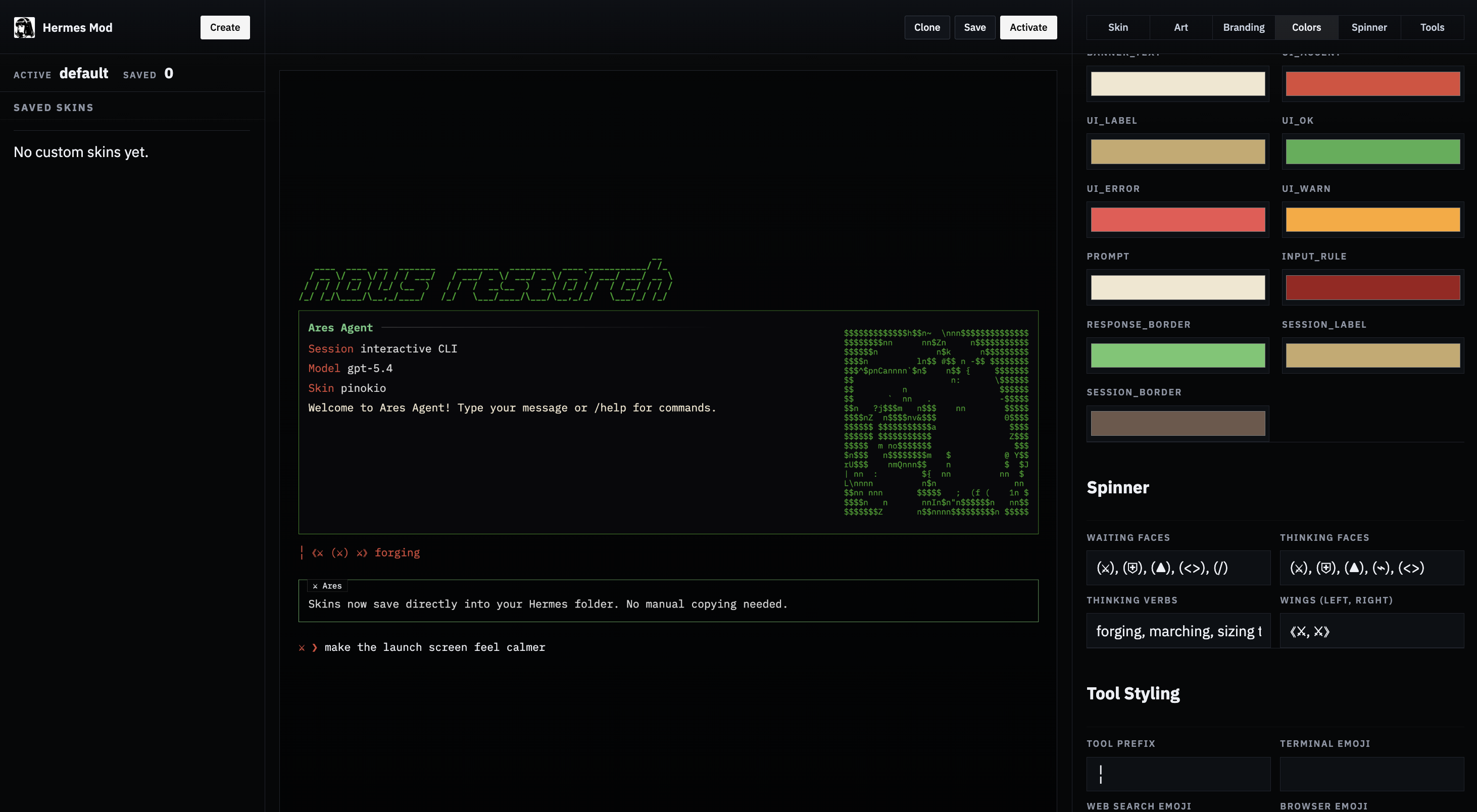
What it does:
- Lists all built-in and custom skins
- Opens any skin into a visual editor with all Hermes skin fields (colors, spinner, branding, tool prefix, tool emojis)
- Generates
banner_logotext art from a text prompt - Converts uploaded images (PNG, JPG, GIF, WEBP) into
banner_heroASCII art with multiple render styles (braille, ASCII ramp, blocks, dots) - Saves directly to
~/.hermes/skins/ - Activates a skin by updating
~/.hermes/config.yaml - Shows the generated YAML and a live preview
Install
Option 1 — Pinokio (1-click):
Find it on pinokio.computer and install with one click.
Option 2 — npx (quickest from terminal):
npx -y hermes-mod
Option 3 — Manual:
git clone https://github.com/cocktailpeanut/hermes-mod.git
cd hermes-mod/app
npm install
npm start
Usage
- Start the app (via Pinokio or terminal).
- Open Skin Studio.
- Choose a built-in or custom skin to edit.
- Generate a logo from text and/or upload an image for hero art. Pick a render style and width.
- Edit colors, spinner, branding, and other fields.
- Click Save to write the skin YAML to
~/.hermes/skins/. - Click Activate to set it as the current skin (updates
display.skininconfig.yaml).
Hermes Mod respects the HERMES_HOME environment variable, so it works with profiles too.
Operational notes
- Built-in skins load from
hermes_cli/skin_engine.py. - Unknown skins automatically fall back to
default. /skinupdates the active CLI theme immediately for the current session.- User skins in
~/.hermes/skins/take precedence over built-in skins with the same name. - Skin changes via
/skinare session-only. To make a skin your permanent default, set it inconfig.yaml. - The
banner_logoandbanner_herofields support Rich console markup (e.g.,[bold #FF0000]text[/]) for colored ASCII art.